
There are 4 ways to upload files to your project once you have created the folder structure
1. Individual – create a placeholder and then use the placeholder upload link to upload the file
2. Bulk Upload – create lots of placeholders in a single folder location, then use the Bulk Upload button to select the correct file for each placeholder
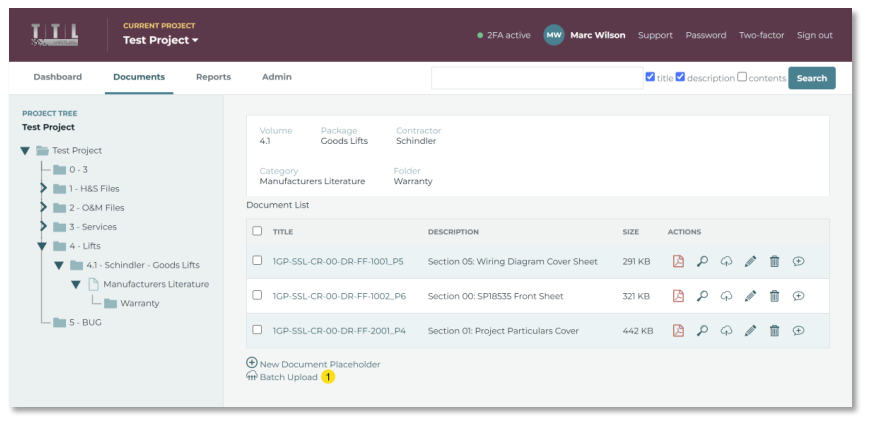
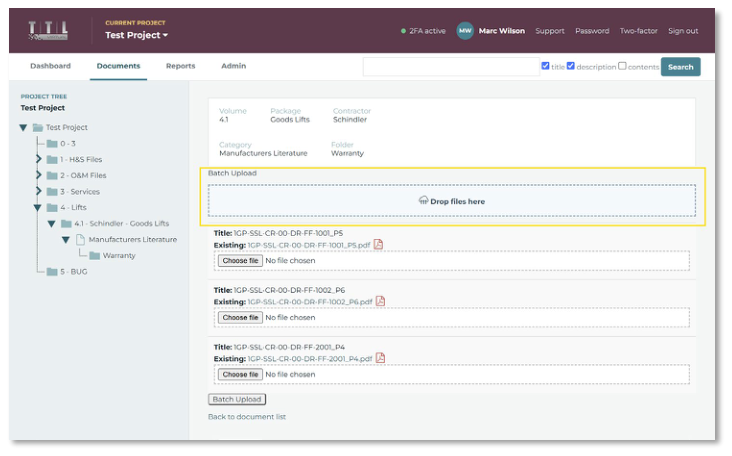
3. Batch Upload – drag & drop a number of files onto the Bulk Upload area to automatically create placeholders and upload the files
4. TTL upload service
Each of the above options comes with benefits and limitations
1. Individual – you have full control over the placeholder title and description fields as well as the filename of the file attached to the placeholder. But this is time- consuming if you have multiple files to upload to the same project folder
2. Bulk Upload - gives you the same individual control over title, description and filename, but as you create all the placeholders first and then bulk-upload the files after, it is better suited to multi-file uploading
3. Batch Upload – the placeholder title will/must match the filename (minus the filename extension), and the description field is blank. This is the quickest way to upload a lot of files if your file-naming convention is what you require for the placeholder titles
4. TTL Upload service – if you have a large number of files to upload that require specific and different wording for placeholder title and description fields
4.1. Individual
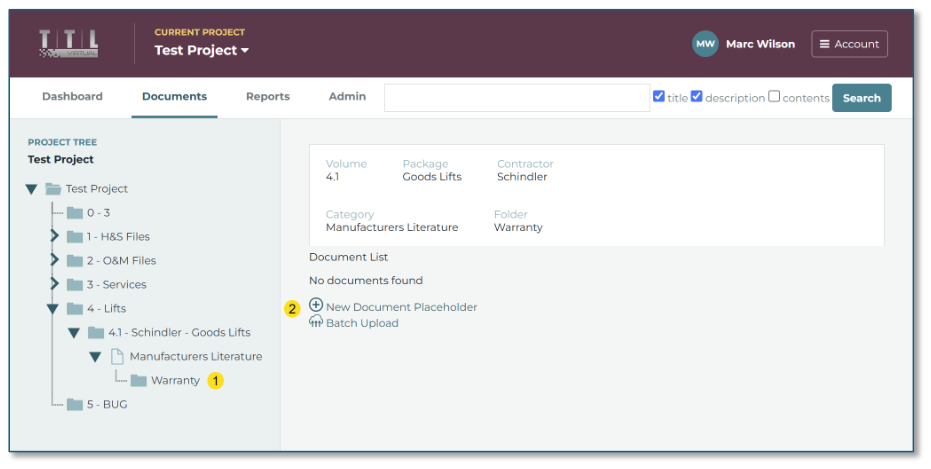
Click on the category folder you want to upload to from the project tree 1, and then click on the ‘New Document Placeholder’ 2 button
 Open image at full size ↗
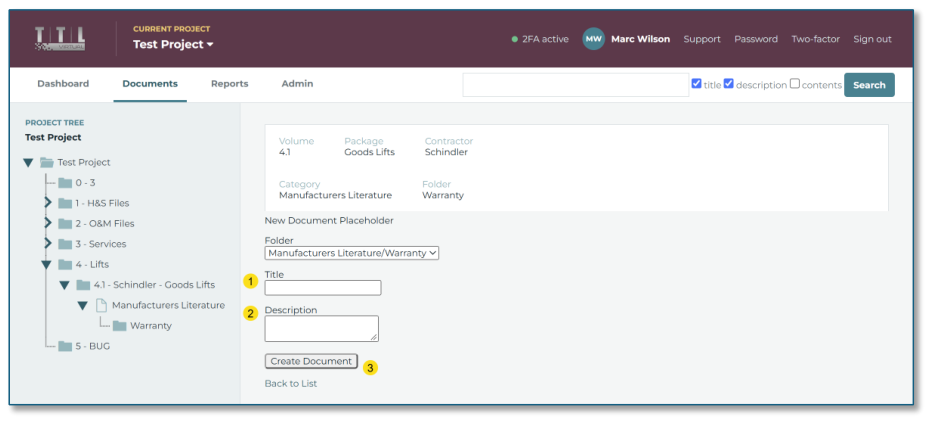
Then complete ‘Title’ 1 and ‘Description’ 2, and then click on ‘Create Document’ 3 button
 Open image at full size ↗
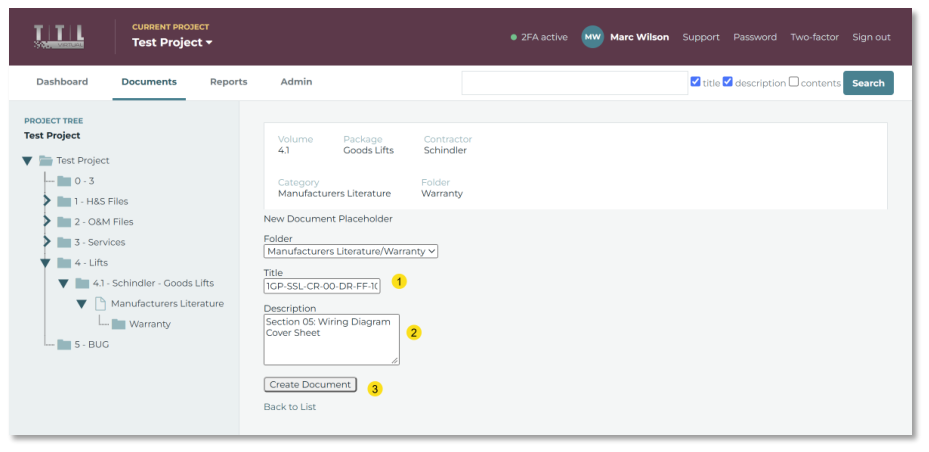
As shown below
 Open image at full size ↗
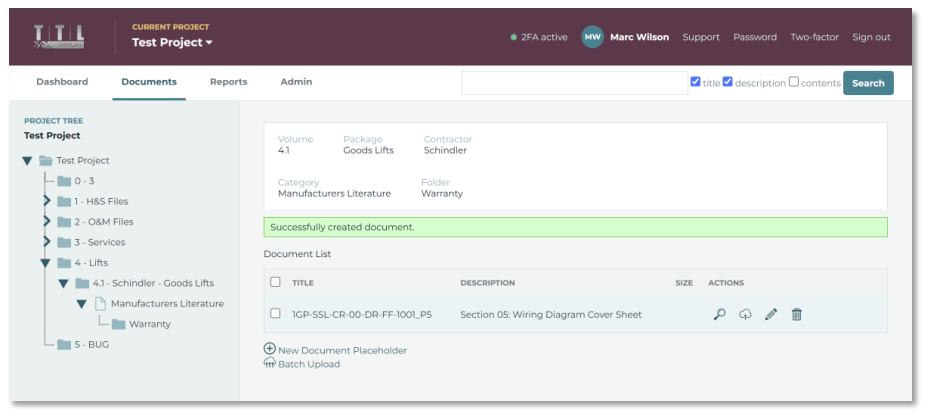
You should then see a green message: ‘Successfully created document’
 Open image at full size ↗
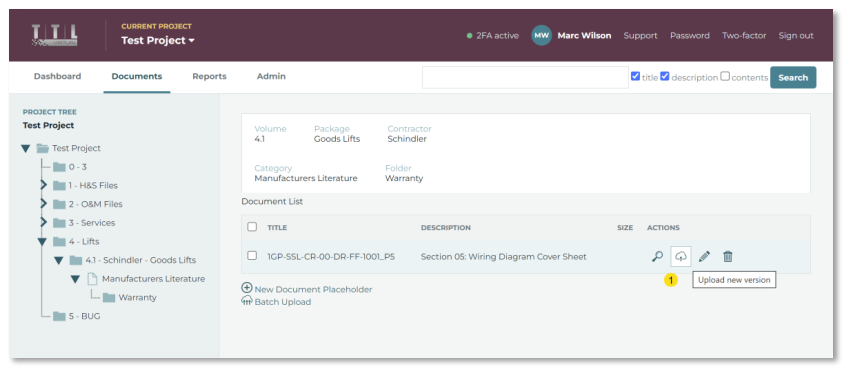
To upload a file to this document placeholder, click on the upload ‘cloud’ 1icon
 Open image at full size ↗
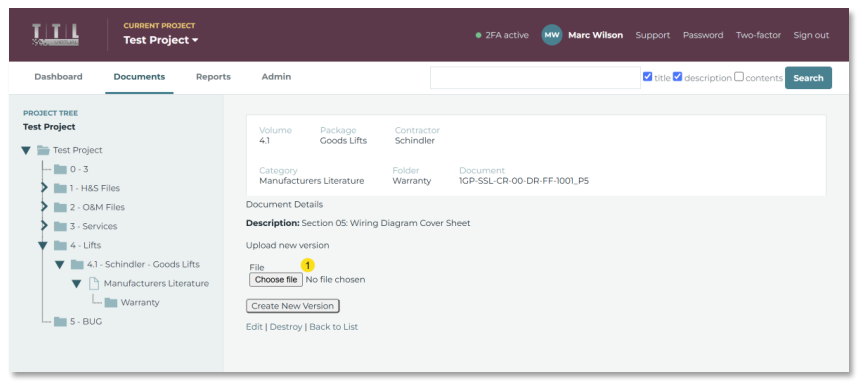
Then click on the ‘Choose file’ 1 button
 Open image at full size ↗
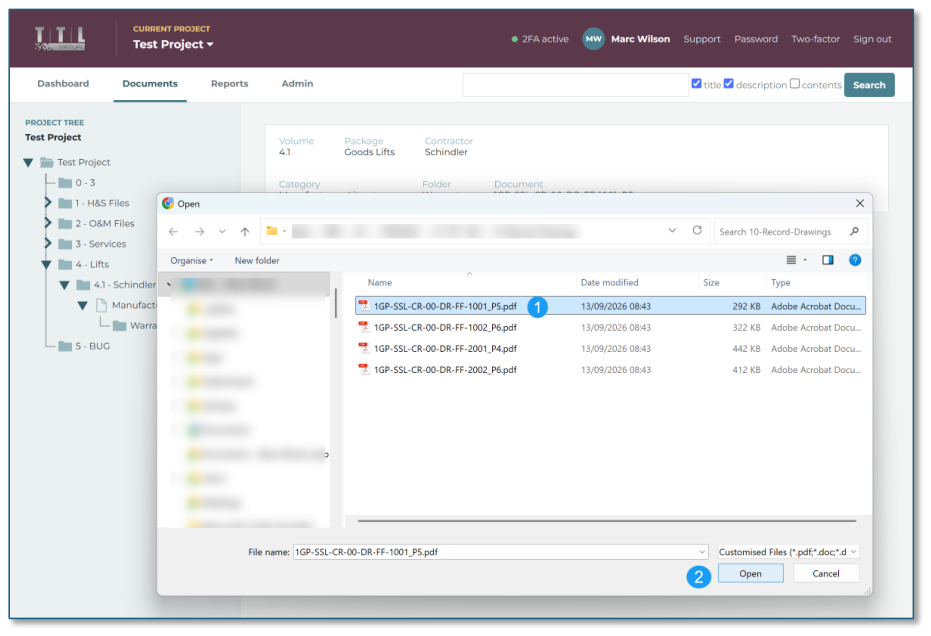
Then browse your computer for the matching file 1 for this document placeholder, and then click on the ‘Open '‘ 2button
 Open image at full size ↗
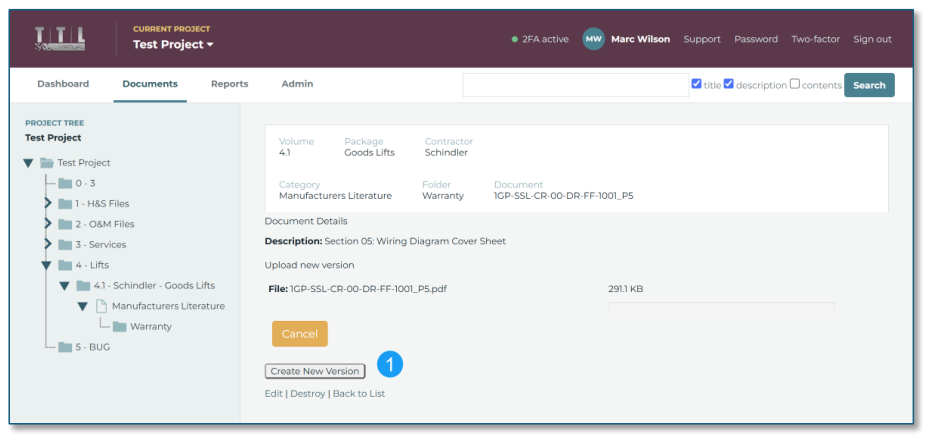
Then click on the ‘Create New Version’ 1 button
 Open image at full size ↗
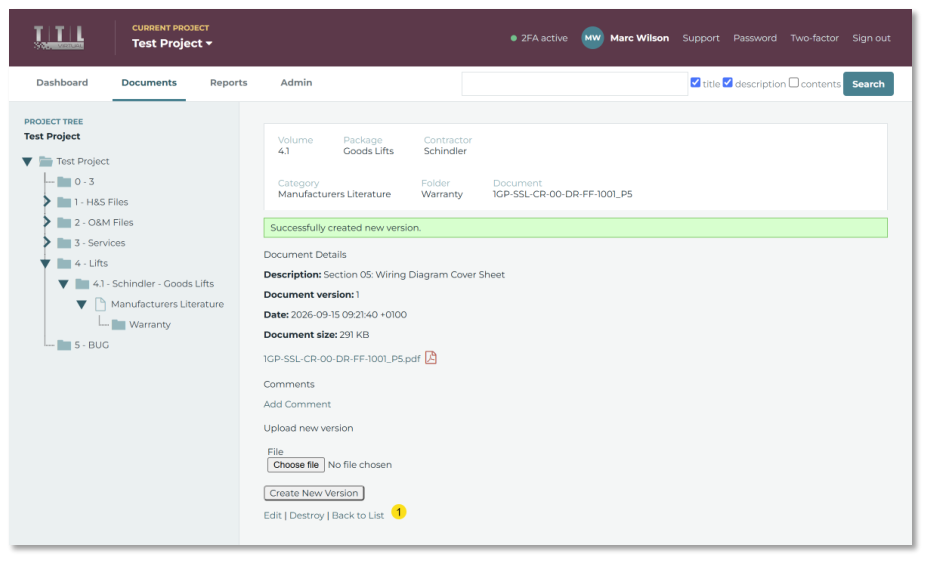
You should then get a green message: ‘Successfully created a new version ’, and click on the ‘Back to List’ 1link
 Open image at full size ↗
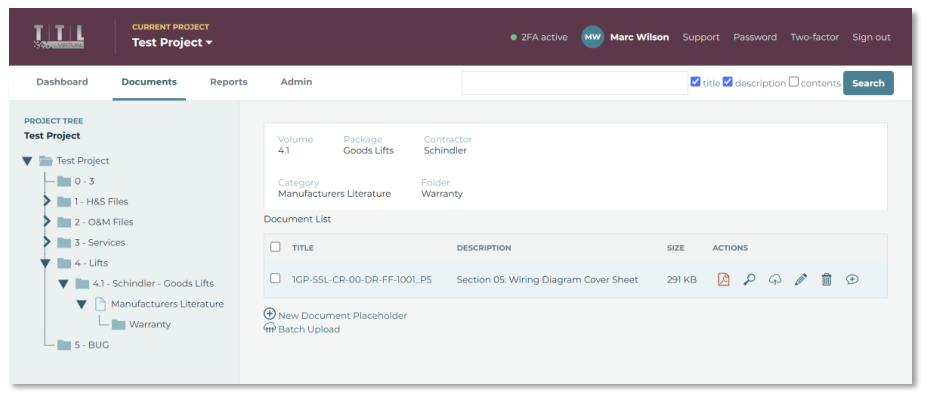
You will have now completed all the steps to create a document placeholder, then upload a file to the placeholder as version 1
 Open image at full size ↗
Now repeat as needed
4.2. Bulk-upload
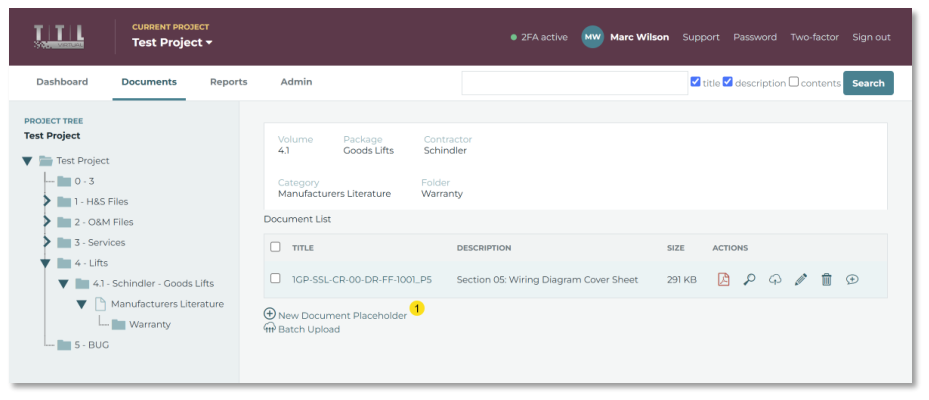
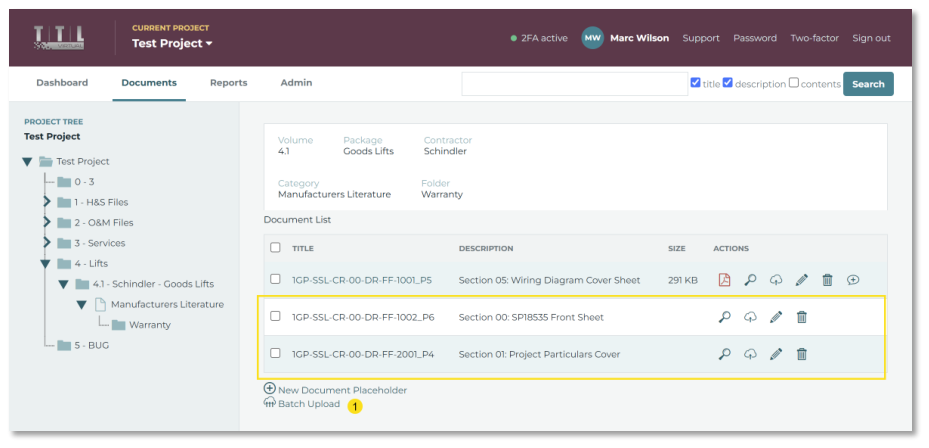
Create all the document placeholders first by using and repeating the ‘New Document Placeholder’ 1 button
 Open image at full size ↗
Once you have created your document placeholder, click on the ‘Batch Upload’ 1 button
 Open image at full size ↗
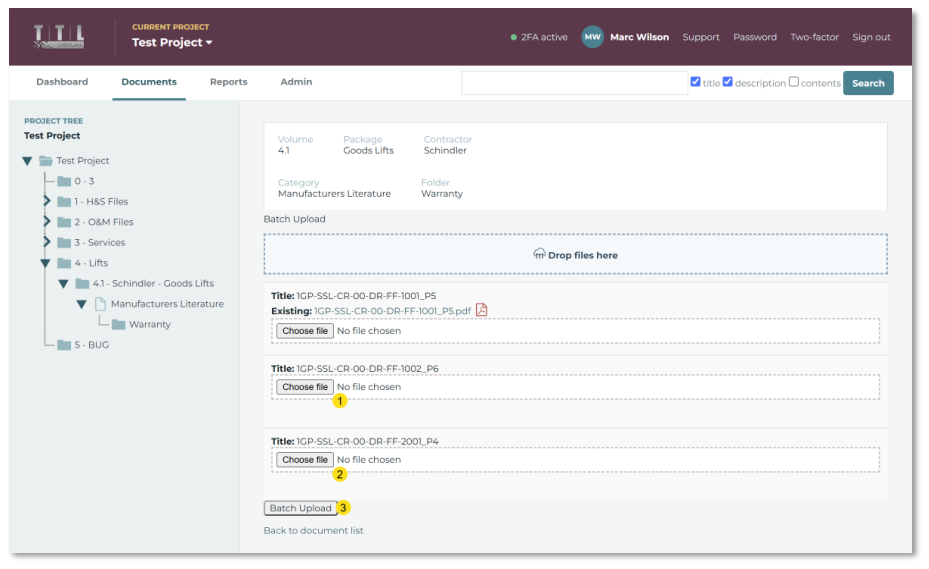
Then, using the ‘Choose file’ 1 and 2 buttons, select the relevant file for each document placeholder
 Open image at full size ↗
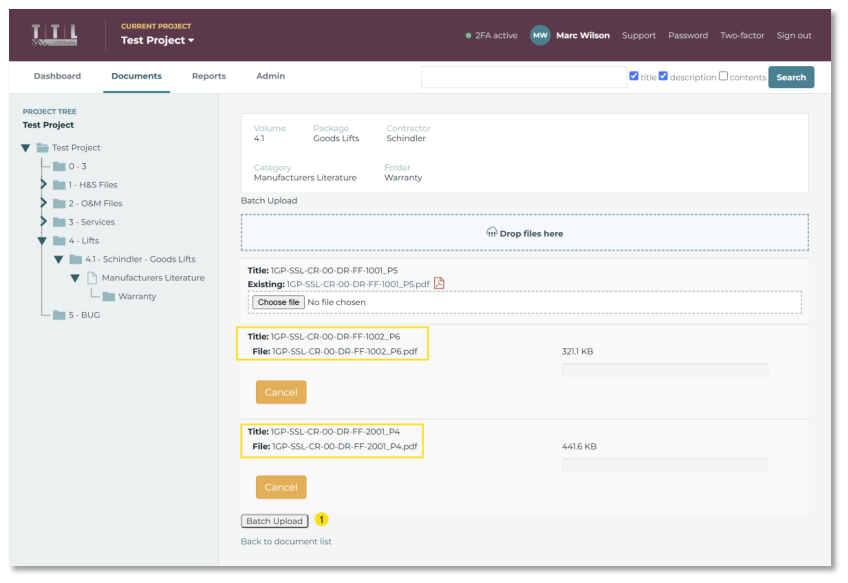
Once you have chosen all the files, click on the ‘Batch Upload’ 1 button
 Open image at full size ↗
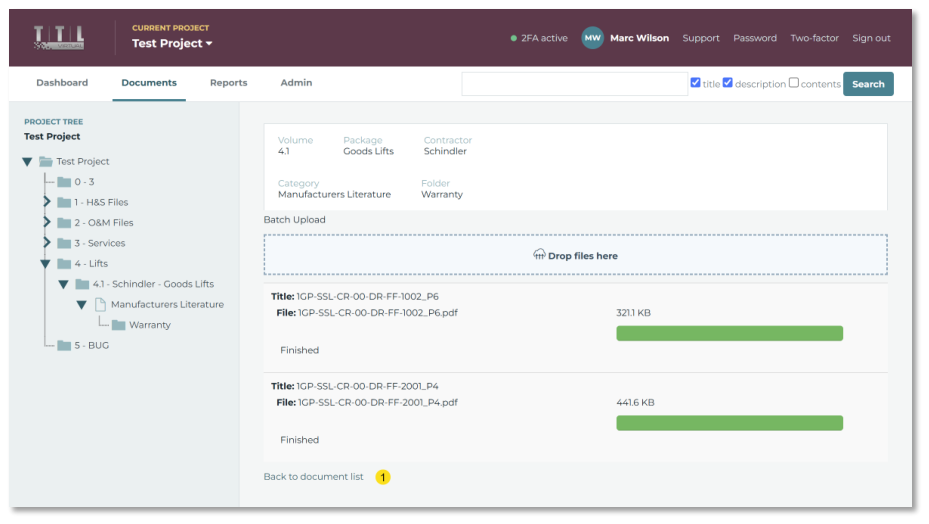
You should then see multiple green ‘Finished’ bars; then click on the ‘Back to document list’ 1 link
 Open image at full size ↗
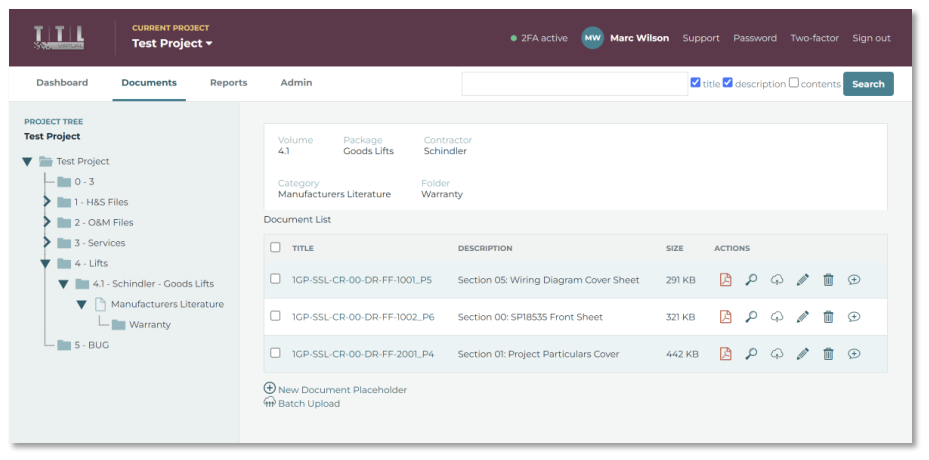
You have now completed bulk uploading files to existing document placeholders
 Open image at full size ↗
4.3. Batch Upload – (drag and drop)
To automate the document placeholder creation with the file upload in a single step
 Open image at full size ↗
Click on the ‘Batch Upload’ 1 button
 Open image at full size ↗
Then select and drag your files from your computer and drop them in the ‘Drop files here’ box
 Open image at full size ↗
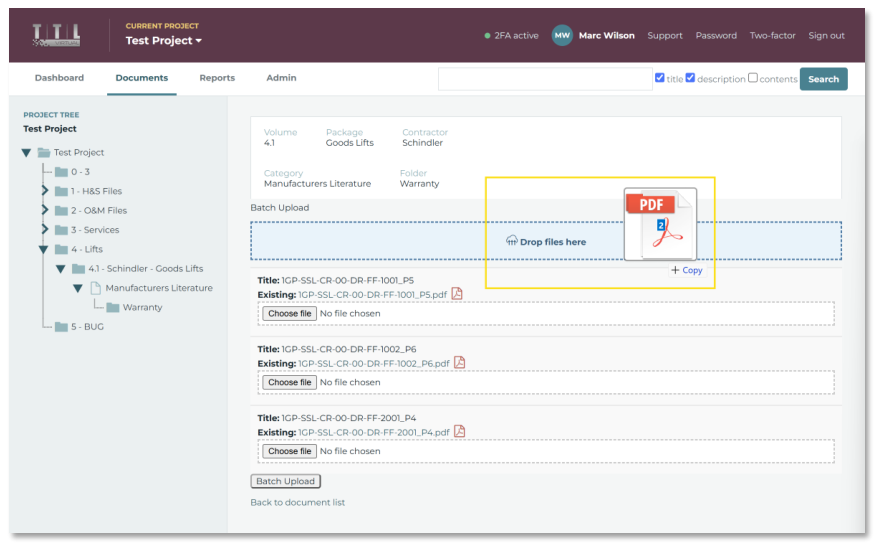
Make sure you release the files inside the ‘Drop files here’ blue box
 Open image at full size ↗
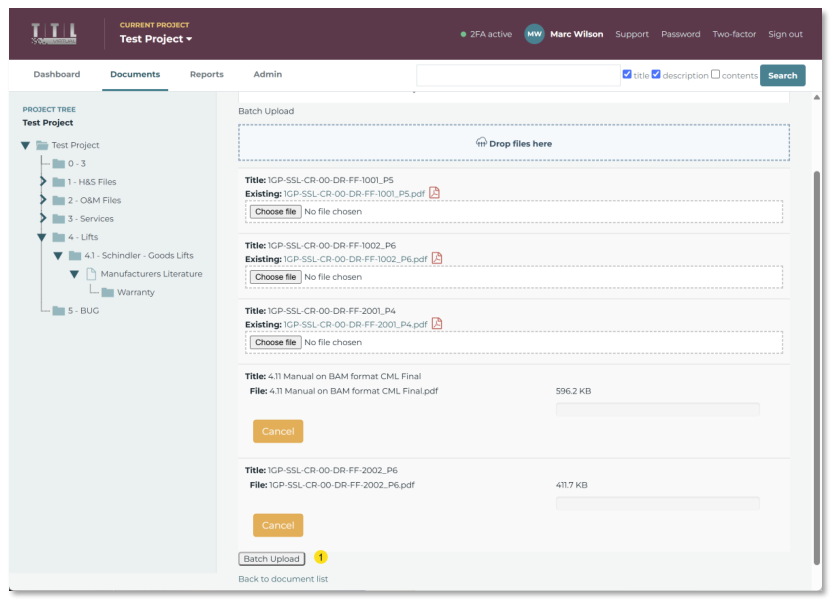
This will then confirm the document placeholder ‘title’ and the file filename that will be uploaded to the document placeholder. Then click on the ‘Batch Upload’ 1button
 Open image at full size ↗
You will then see ‘Finished’ green bars; then click on the ‘Back to Document List ’’ 1
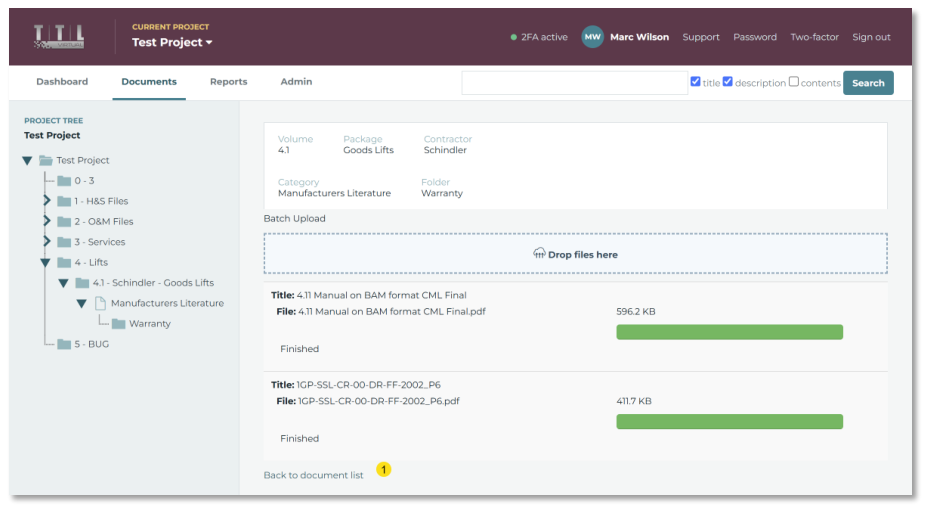 Open image at full size ↗
The automated Bulk Upload will create the document placeholder with the same name as the corresponding file filename, and note that the description is blank for files uploaded this way
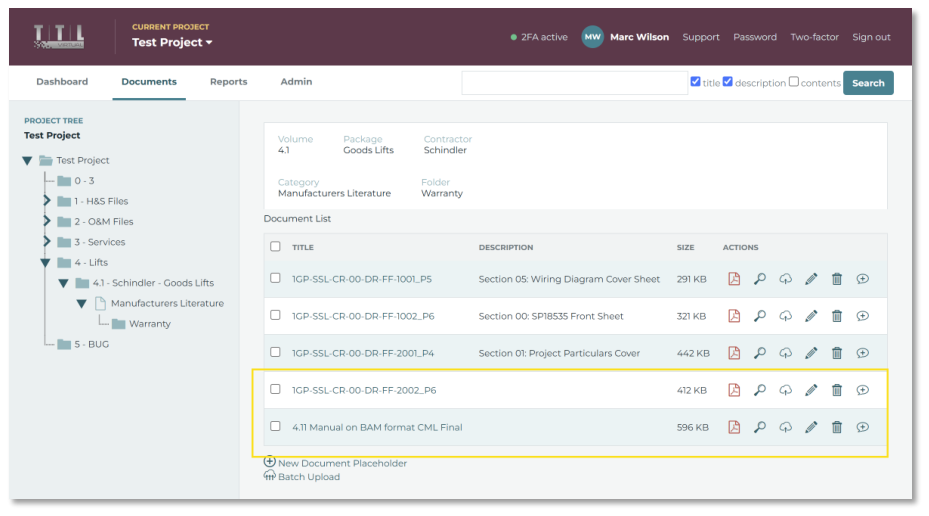 Open image at full size ↗
To add a ‘Description’ to a ‘document placeholder’, click on the pencil icon ‘Edit document’ 1
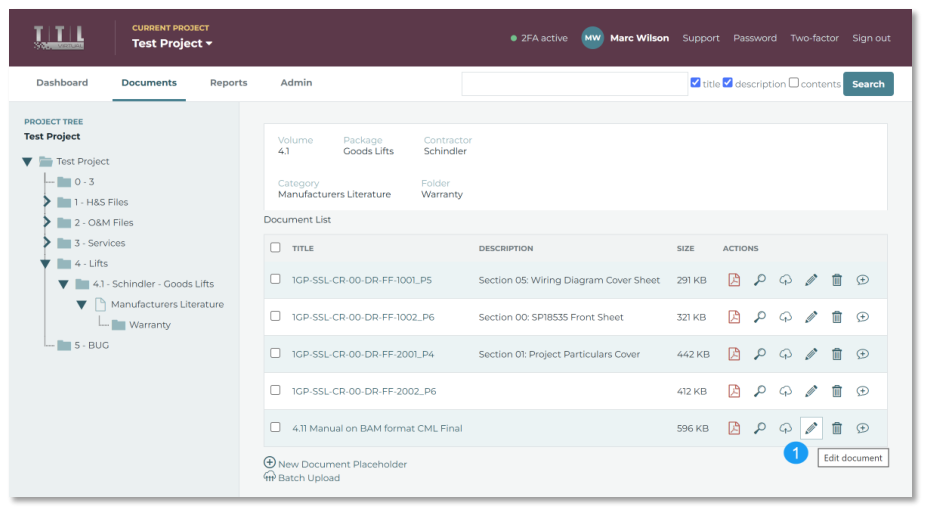 Open image at full size ↗
This will then display all the document details, which will allow you to add a ‘Description’ 1; then click on the ‘Update Document’ 2button
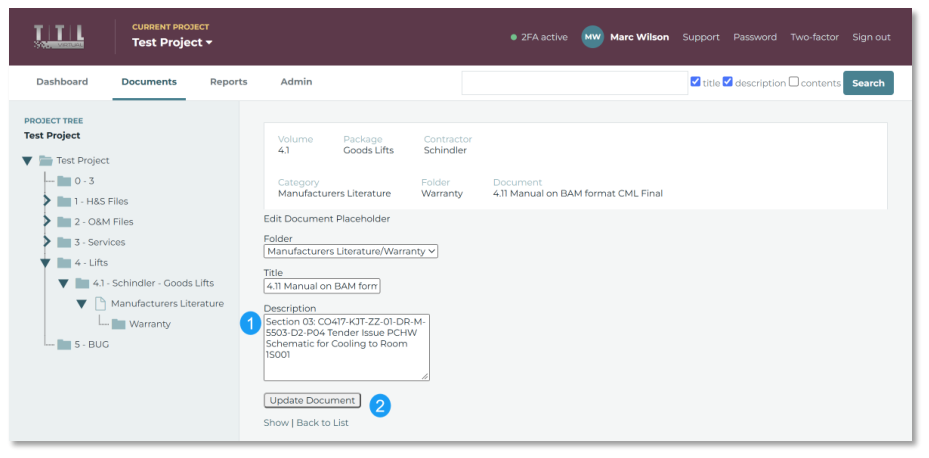 Open image at full size ↗
You have now completed the ‘Bulk Upload’ steps – repeat as needed
4.4. TTL Upload service
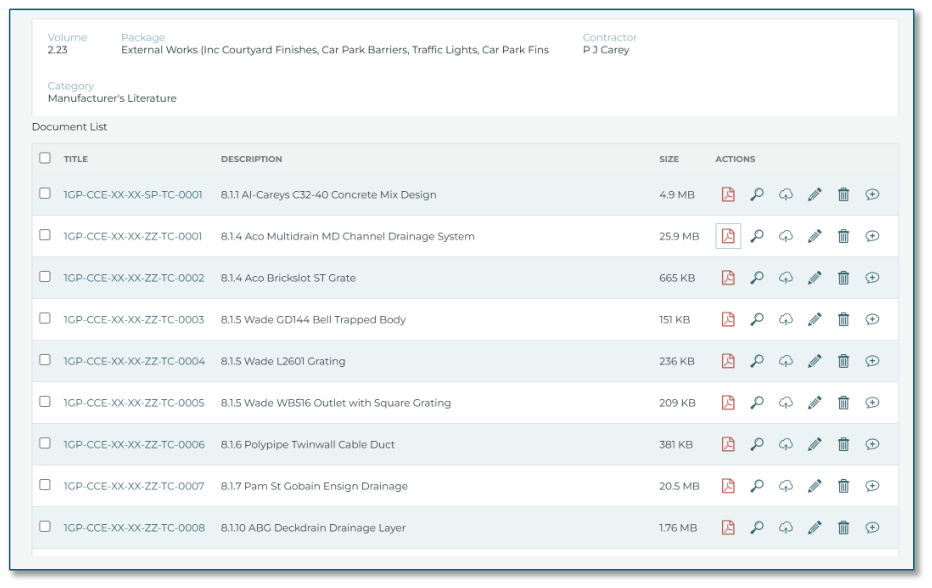
If you have a large number of files to upload to a ‘Category/Folder’ that you want to upload with different document ‘Title’ and ‘Description’, like below
 Open image at full size ↗
Please contact us via the ‘Support’ link at the top of the page