
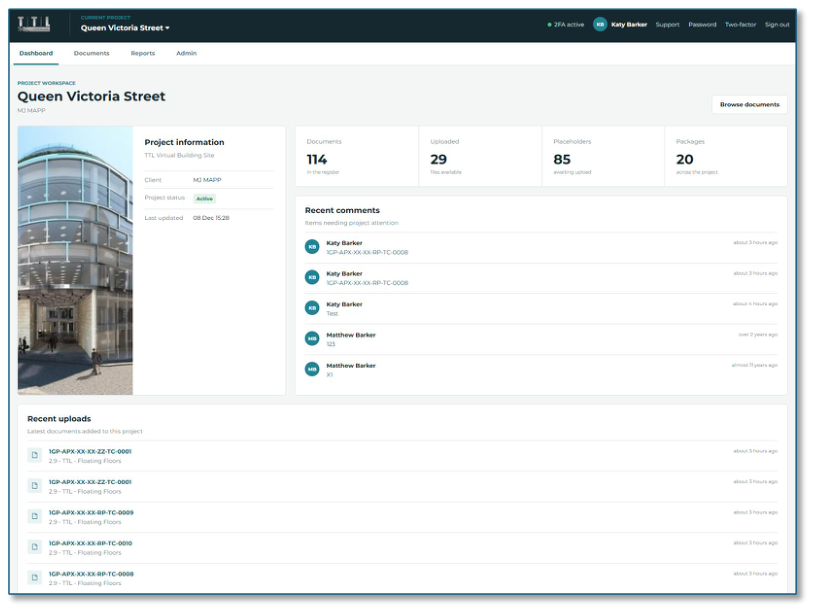
After you log in, you will be taken to the Project Dashboard.
 Open image at full size ↗
This provides an overview of the project, including the number of placeholders and uploaded files. It also shows the most recent uploads and comments.
 Open image at full size ↗
Click the links at the top right of the page to view your 2FA status, logged-in username, Support contact details, change your Password, change your Two- factor Authentication device, and sign out.
 Open image at full size ↗
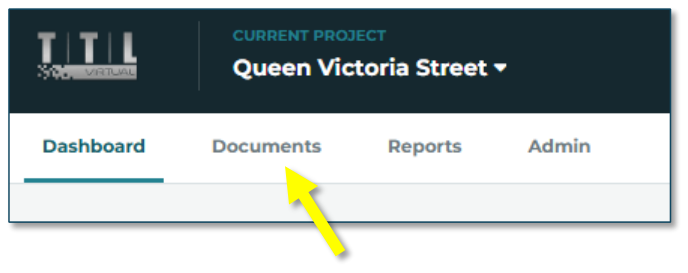
Click the Documents tab at the top left of the page to view the project files.
 Open image at full size ↗
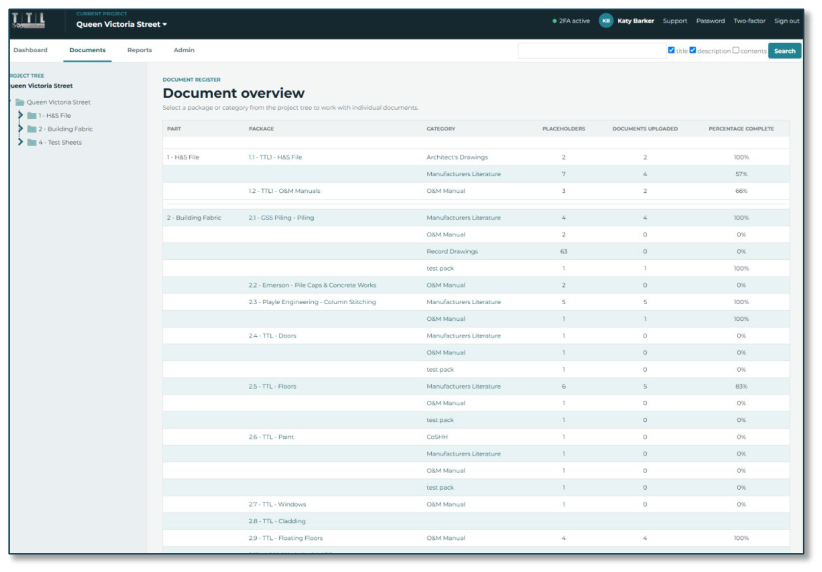
You will see a project overview page detailing the folders, the number of placeholders, and the number of documents uploaded.
 Open image at full size ↗
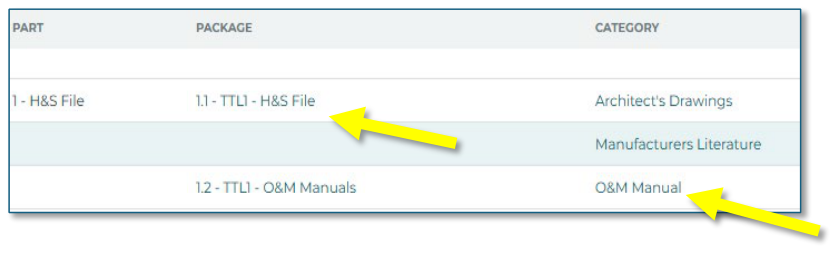
Click the package or category links to navigate to files.
 Open image at full size ↗
You can also navigate to the documents you require using the folder tree on the left-hand side of the page.
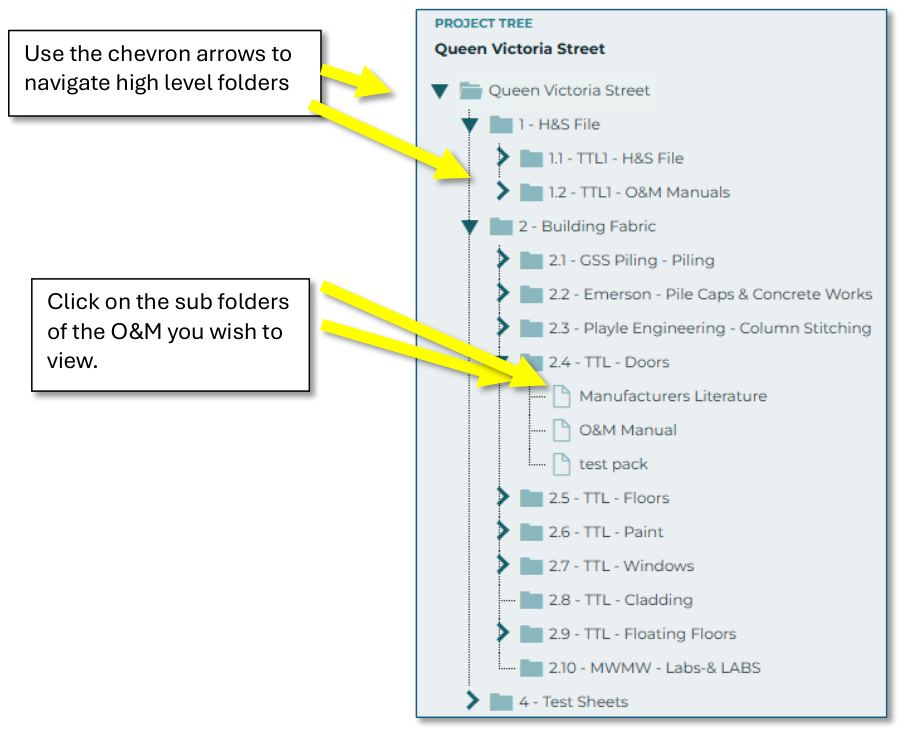 Open image at full size ↗
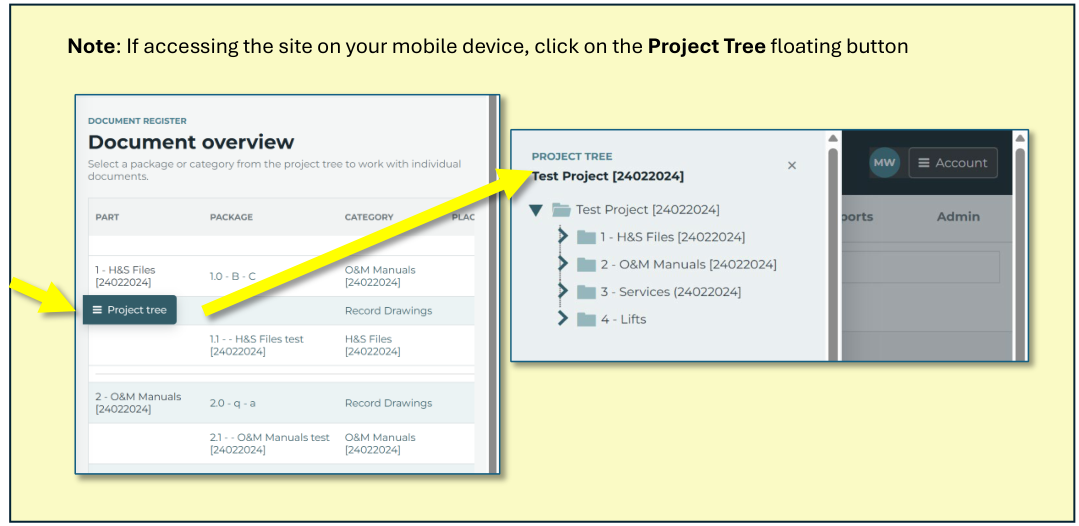 Open image at full size ↗
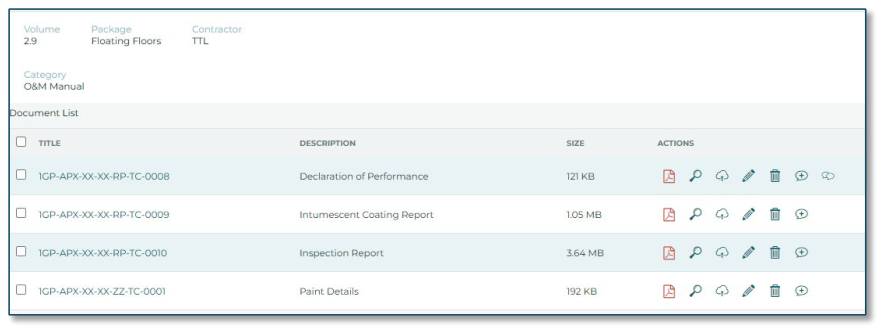
The folder lists the documents.
 Open image at full size ↗
Open the document by clicking on the “title” or the “file” icon on the right-hand side of the page.
 Open image at full size ↗
The document will open in a separate window, where you can save or print it. You may see several icons next to the files. The icons you see depend on your access, such as “commenter” and “uploader”. You will be given the level of access appropriate for your role. Please get in touch with us if you have any questions about your access.
 | File |
 | File details, such as the version number |
 | Upload |
 | Edit |
 | Delete |
 | Add comment |
 | View comment |
You can find information on the function of these icons on the following pages.
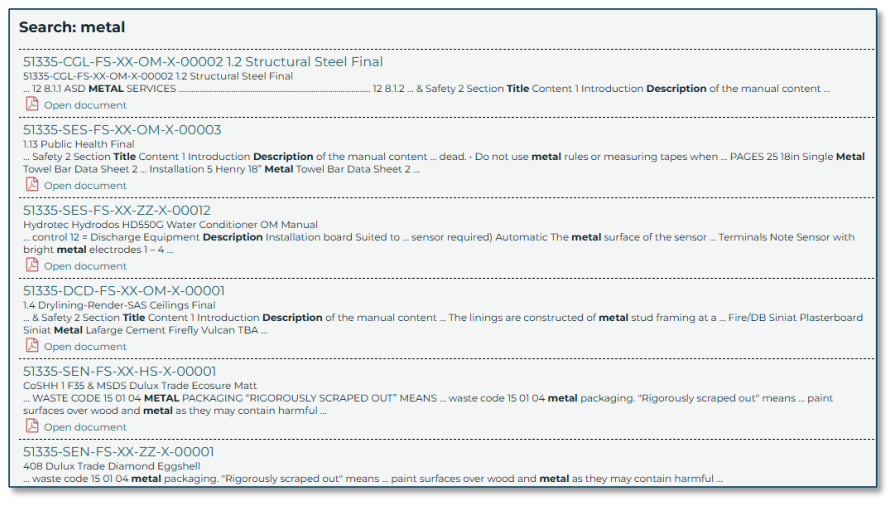
You can also search for documents using the search box at the top of the page. You can select and search 3 datasets: title, description, and contents (file). You can select any combination of these 3 datasets
 Open image at full size ↗
The search results will be listed, with the found search word/phrase highlighted in bold. Click on any result to open the document.
 Open image at full size ↗