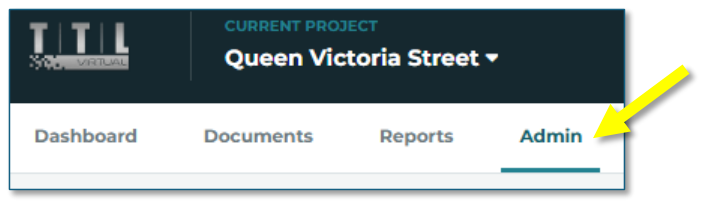
If you have “admin” access, you can administer your project by clicking on the “Admin” tab.
 Open image at full size ↗
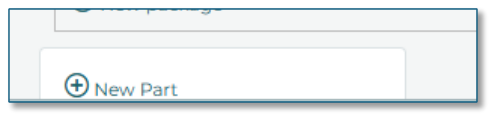
On this tab, you can edit the folder structure, categories, and user permissions. To edit the folder structure, click on the “Edit folder structure” button. Click on the “New Part” button to create a new top-level folder.
 Open image at full size ↗
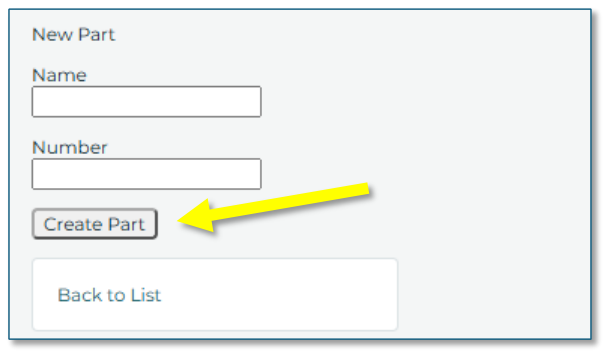
Enter the name and number of the new “Part” and click the “Create Part” button.
 Open image at full size ↗
Your new “Part” will be created.
To add a new “package” under your “Part”, click the “New Package” link.
 Open image at full size ↗
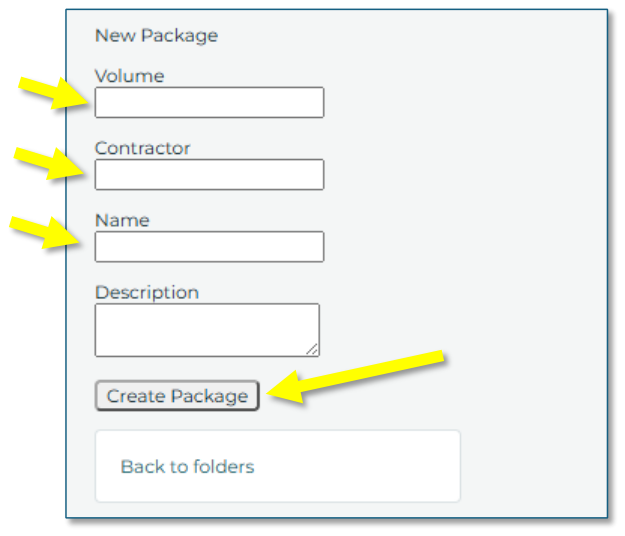
Complete the fields as necessary.
Under “Volume”, enter the number 1, 2, 3, etc.; this will display as 3.1, 3.2, 3.3 in the example below. (e.g. your part number is 3 and your package number is a subset of this).
Enter the name of the package and the contractor’s name, if necessary.
Then click the “Create Package” button.
 Open image at full size ↗
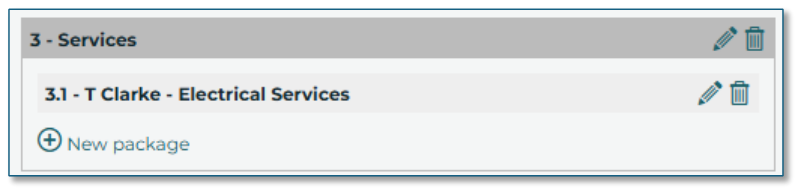
You should now see your new package.
 Open image at full size ↗
Repeat the above steps as necessary. You can edit or delete your “Parts” and “Packages” by clicking on the pencil or trash can icons.
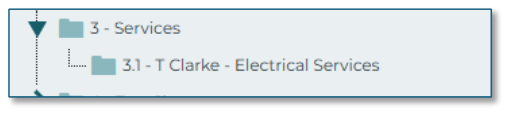
When you return to the Documents tab, the new folder structure you have created will be displayed.
 Open image at full size ↗
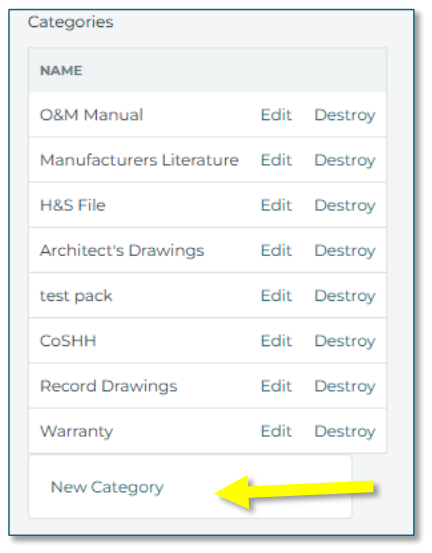
Each document you upload needs to belong to one of the project “Categories”. You can add or change these by clicking on the “Edit categories” button on the Admin tab.
To add a category, click the “New Category” link.
 Open image at full size ↗
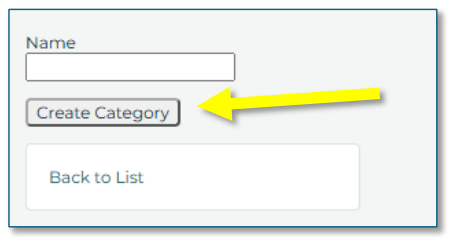
Add the name of the new category and click the “Create Category” button.
 Open image at full size ↗
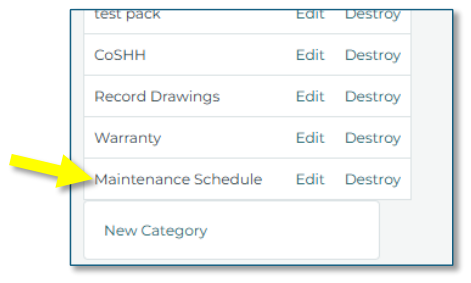
The new category will appear in the list.
 Open image at full size ↗
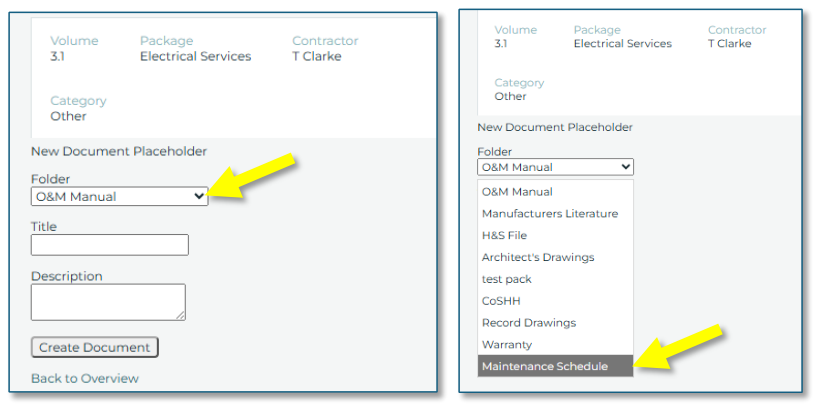
You can edit or delete the categories by clicking on the relevant links. When you return to the Documents tab to upload a new file, as described in the “Uploading” section of this document, your new category will appear in the drop-down menu.
 Open image at full size ↗
 Open image at full size ↗
You can edit your users' access level by clicking the “Edit user permissions” link on the Admin tab.
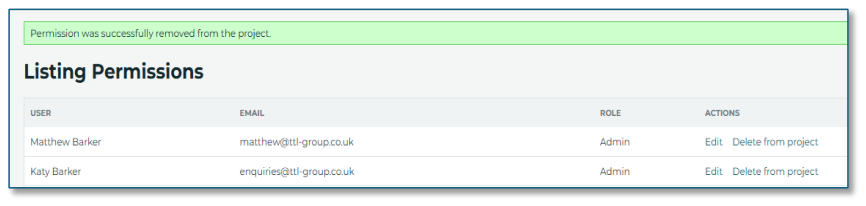
You can choose to “edit” the user or “delete from project” by clicking on the relevant links.
 Open image at full size ↗
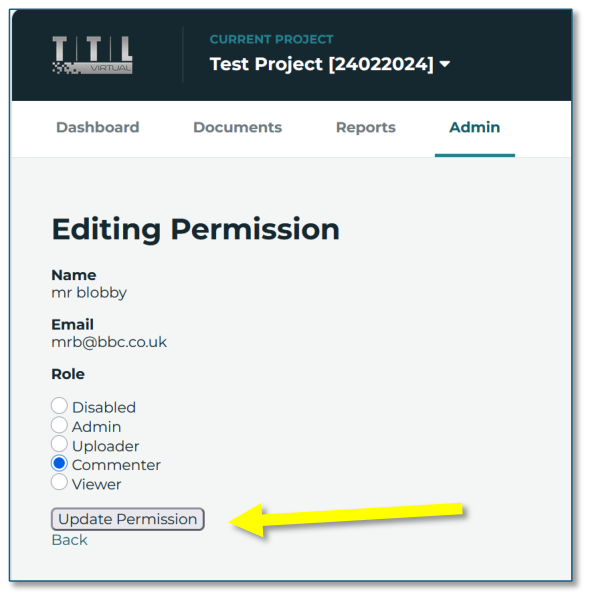
If you click on “Edit”, you can then change their role.
 Open image at full size ↗
Once selected, click on the “Update Permission” button.
The permissions available are:
Permission | Functions Available | Icons Available |
Disabled | The user loses access. | None |
Admin | The user can use the Admin functions described in this section as well as all other functions (commenting, uploading, deleting). | |
Uploader | The user can upload files to existing placeholders and comment. | |
Commenter | The user can add comments to existing files. | |
Viewer | The user can view only. |