
Once you set up your password and two-factor authentication, you can change them at any time. Go to the links at the top right-hand side of the page.
 Open image at full size ↗
Click on the “Password” button.
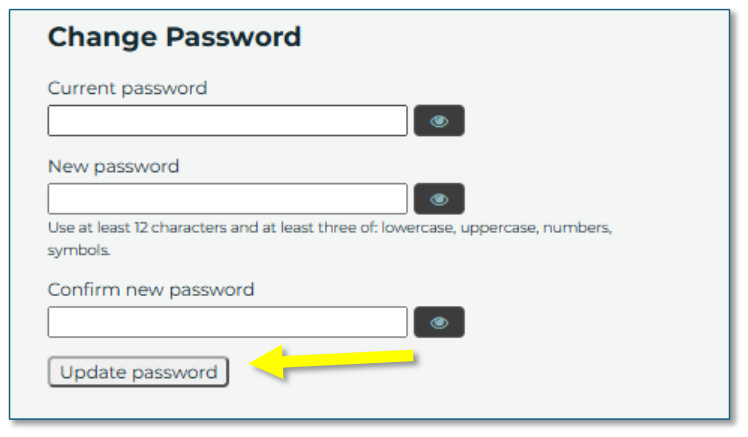
Then enter your current password in the relevant box.
 Open image at full size ↗
Enter your new password and confirm it in the relevant boxes, then click on the ‘Update password’ button.
Note: We recommend changing your password regularly as part of good security
practice.
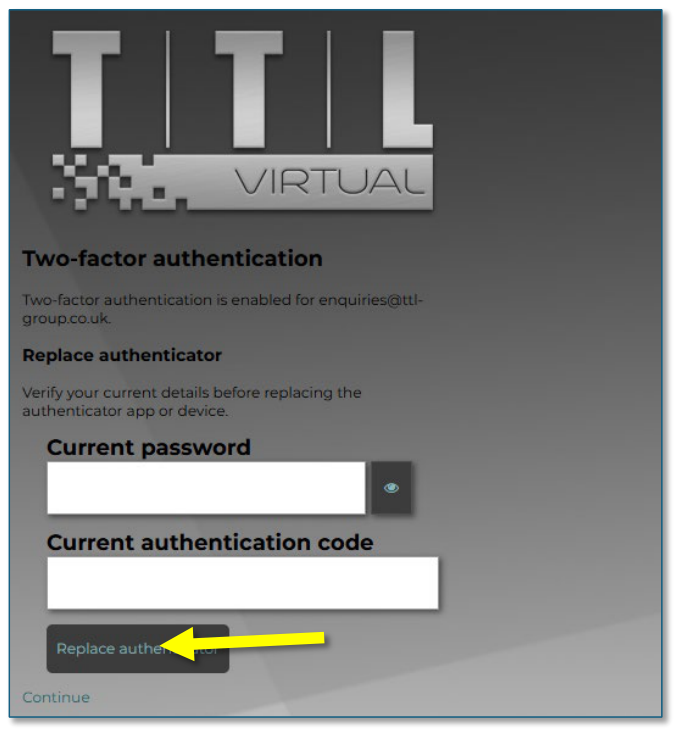
If you need to replace the authenticator app for any reason, such as using a different one or changing your phone, click the ‘Two-factor’ button.
 Open image at full size ↗
Enter your current password and current authentication code in the relevant boxes, then click on the ‘Replace Authenticator’ button.
 Open image at full size ↗
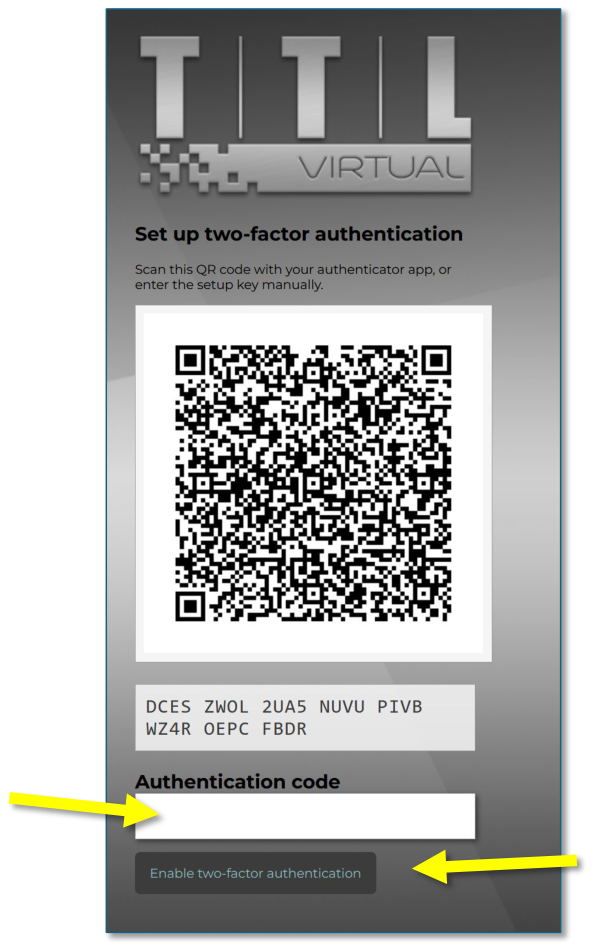
You will then be taken to the original Authenticator setup screen.
Scan the code or enter the setup key displayed on the screen in the new Authenticator app to add your TTL Virtual account.
 Open image at full size ↗
Once you add your TTL Virtual account to the Authenticator app, it will generate a 6- digit response code. Enter the code from the Authenticator app into the ‘Authentication code’ box and click on the ‘Enable two-factor authentication’ button.
The process is then complete.