
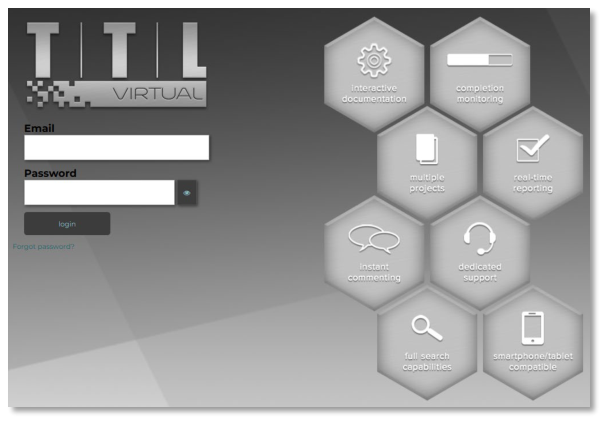
To log on to the TTL Virtual system to view your project files, use the same link as before; navigate to:
https://virtual.ttl-group.co.uk/sign_in
 Open image at full size ↗
Sign in with your existing email and password - note that this is case- sensitive.
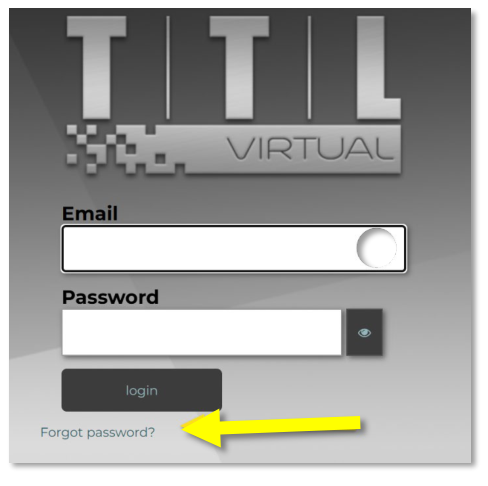
If you forget your password, you can use the “Forgot Password?” link – see the “Forgot Password” section below.
 Open image at full size ↗
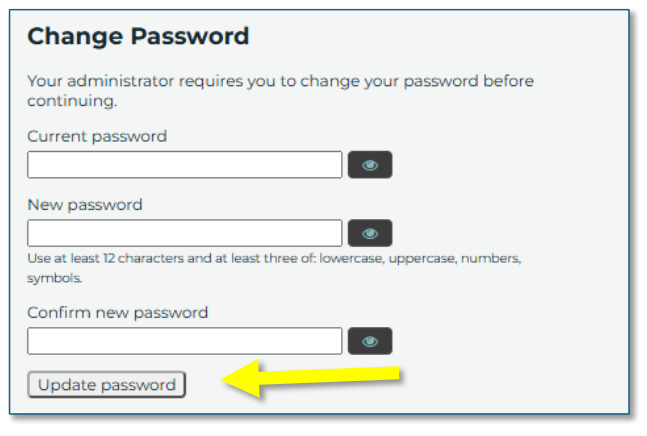
If you are prompted to change your password automatically, enter your current password in the relevant box.
 Open image at full size ↗
Enter your new password, then confirm it in the relevant boxes.
Note:
The new password must have at least 12 characters and use at least three of:
• lowercase letters
• uppercase letters
• numbers
• symbols
Then press the ‘Update password’ button.
If you are prompted to set up two-factor authentication, open your preferred
Authenticator app, such as Microsoft Authenticator, Google Authenticator,
Duo Mobile, 1Password, or 2FAS Auth.
Note:
If you do not already have an Authenticator app, you can download one for free
from the app store on the phone you usually use.
See above for some examples of Authenticator apps.
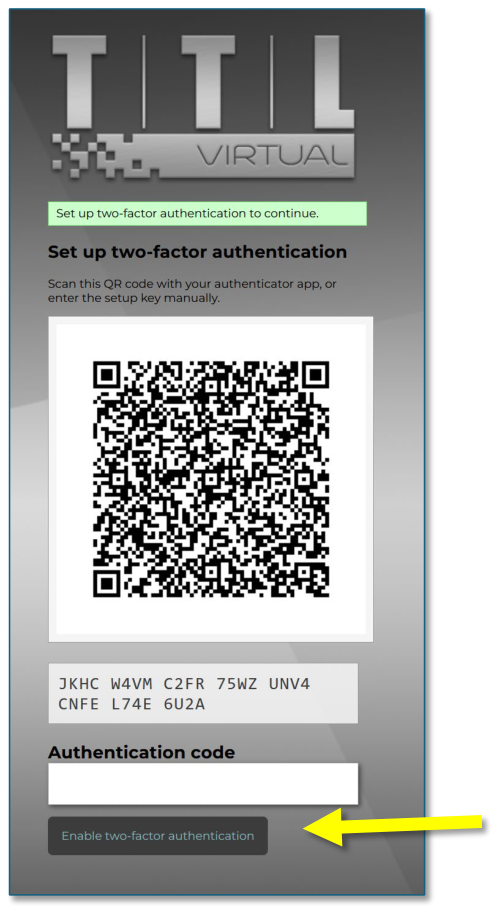
Add your TTL Virtual account to your chosen Authenticator app by scanning the QR code or manually entering the setup key shown on the screen.
 Open image at full size ↗
Then enter the response code from your app into the ‘Authentication code’ box and click on the ‘Enable two-factor authentication’ button. Continue into TTL Virtual as normal. Future logins will use your email, password, and the 6-digit authenticator code.